5 UI/UX Design and Prototyping
5.1 Learning Objectives
By the end of this chapter, you will be able to:
- Explain the principles of human-centered design and their importance in software development
- Distinguish between User Interface (UI) and User Experience (UX) design
- Apply UX heuristics to evaluate and improve interface designs
- Create wireframes and prototypes at varying levels of fidelity
- Design responsive interfaces that work across different devices and screen sizes
- Implement accessibility best practices to create inclusive software
- Develop a UI style guide for consistent design across an application
- Use modern prototyping tools to communicate design ideas
5.2 Understanding UI and UX
You’ve probably used software that felt frustrating—confusing menus, buttons that didn’t look clickable, forms that lost your data, error messages that made no sense. You’ve also used software that felt effortless—intuitive navigation, clear feedback, tasks accomplished with minimal friction. The difference isn’t accidental. It’s the result of thoughtful design.
User Experience (UX) and User Interface (UI) design are the disciplines that create this difference. While often mentioned together, they address different aspects of how users interact with software.
5.2.1 What Is User Experience (UX)?
User Experience encompasses all aspects of a user’s interaction with a product, service, or company. It’s about how the product feels to use—whether it’s satisfying, frustrating, efficient, or confusing.
UX design asks questions like:
- What problem is the user trying to solve?
- What steps must users take to accomplish their goals?
- How do users feel during and after using the product?
- What obstacles prevent users from succeeding?
- How can we make the experience more efficient and enjoyable?
UX extends beyond the screen. It includes:
- The user’s first impression when discovering the product
- The onboarding experience for new users
- The day-to-day experience of regular use
- Error handling and recovery
- Customer support interactions
- The experience of leaving or canceling
UX Design Activities:
- User research and interviews
- Creating user personas
- Journey mapping
- Information architecture
- Interaction design
- Usability testing
- Analyzing user behavior data
5.2.2 What Is User Interface (UI)?
User Interface design focuses on the visual and interactive elements users directly interact with—buttons, icons, typography, colors, layouts, animations, and more.
UI design asks questions like:
- What should users see on this screen?
- How should interactive elements look and behave?
- What visual hierarchy guides users’ attention?
- How do colors, fonts, and spacing create the right mood?
- How does the interface communicate its state?
UI design is about making the interface:
- Visually appealing: Aesthetically pleasing and aligned with brand identity
- Clear: Users understand what they’re seeing
- Consistent: Similar elements look and behave similarly
- Responsive: Interface provides feedback for user actions
UI Design Activities:
- Visual design (colors, typography, imagery)
- Layout and composition
- Icon and button design
- Motion and animation design
- Creating design systems and style guides
- Responsive design for multiple screen sizes
5.2.3 The Relationship Between UX and UI
UX and UI are deeply interconnected:
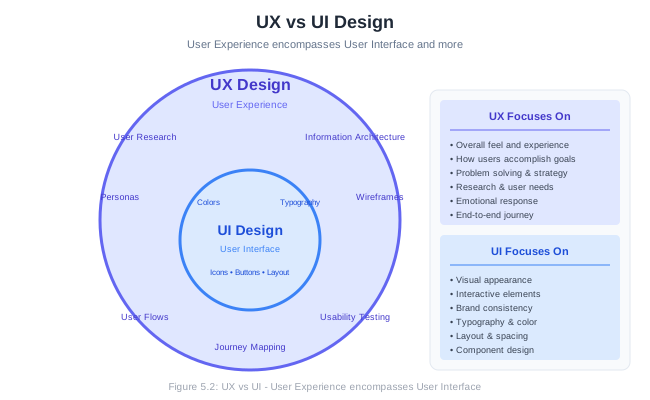
┌─────────────────────────────────────────────────────────────────────────┐
│                         User Experience (UX)                            │
│                                                                         │
│  ┌───────────────────────────────────────────────────────────────────┐  │
│  │                      User Interface (UI)                          │  │
│  │                                                                   │  │
│  │   ┌─────────────┐  ┌─────────────┐  ┌─────────────┐              │  │
│  │   │   Visual    │  │ Interactive │  │   Layout    │              │  │
│  │   │   Design    │  │  Elements   │  │             │              │  │
│  │   └─────────────┘  └─────────────┘  └─────────────┘              │  │
│  │                                                                   │  │
│  └───────────────────────────────────────────────────────────────────┘  │
│                                                                         │
│  ┌─────────────┐  ┌─────────────┐  ┌─────────────┐  ┌─────────────┐    │
│  │   User      │  │ Information │  │ Interaction │  │  Usability  │    │
│  │  Research   │  │Architecture │  │   Design    │  │   Testing   │    │
│  └─────────────┘  └─────────────┘  └─────────────┘  └─────────────┘    │
│                                                                         │
└─────────────────────────────────────────────────────────────────────────┘
A useful analogy: If your product were a house, UX would be the architecture—the floor plan, the flow between rooms, how living in it feels. UI would be the interior design—the paint colors, the furniture choices, the light fixtures.
You can have:
- Good UX with poor UI: The product works well but looks outdated or unappealing
- Good UI with poor UX: The product looks beautiful but is frustrating to use
- Good UX and UI: The product is both effective and delightful (the goal!)
5.2.4 Why Software Engineers Need Design Skills
You might wonder why a software engineering course covers design. Can’t designers handle this? In practice:
Many teams don’t have dedicated designers. Startups, small companies, and internal tools often rely on developers to make design decisions.
Design affects technical decisions. How you structure your code depends on what the interface needs to do. Understanding design helps you build better systems.
Better communication with designers. Even with dedicated designers, understanding their work improves collaboration.
Design thinking improves problem-solving. The empathy and iteration central to design make you a better engineer overall.
Users don’t separate code from design. Users experience the whole product. Poor design undermines excellent code.
5.3 Human-Centered Design
Human-Centered Design (HCD) is an approach that grounds the design process in information about the people who will use the product. Rather than designing based on assumptions or technical constraints, HCD starts with understanding users’ needs, behaviors, and contexts.
5.3.1 Principles of Human-Centered Design
1. Focus on People
Design begins with understanding users—not technology, not business requirements, but the humans who will interact with the system.
This means:
- Observing users in their natural environment
- Understanding their goals, frustrations, and contexts
- Recognizing that users are experts in their own needs
- Designing for real people, not idealized users
2. Find the Right Problem
Many failed products solve the wrong problem beautifully. HCD invests in problem definition before jumping to solutions.
“If I had an hour to solve a problem, I’d spend 55 minutes thinking about the problem and 5 minutes thinking about solutions.” — attributed to Albert Einstein
3. Think Systemically
Problems exist within systems. A solution that fixes one issue might create others. HCD considers the broader context and ripple effects of design decisions.
4. Iterate Relentlessly
Perfect solutions rarely emerge fully formed. HCD embraces iteration—designing, testing, learning, and refining in cycles.
         ┌──────────────┐
         │   Empathize  │
         │ (Understand  │
         │    users)    │
         └──────┬───────┘
                │
                ▼
         ┌──────────────┐
         │    Define    │
         │  (Frame the  │
         │   problem)   │
         └──────┬───────┘
                │
                ▼
         ┌──────────────┐
         │    Ideate    │
         │  (Generate   │
         │   ideas)     │
         └──────┬───────┘
                │
                ▼
         ┌──────────────┐
         │  Prototype   │
         │   (Build to  │
         │    learn)    │
         └──────┬───────┘
                │
                ▼
         ┌──────────────┐
         │    Test      │◄────────────────┐
         │  (Get user   │                 │
         │  feedback)   │                 │
         └──────┬───────┘                 │
                │                         │
                └─────────────────────────┘
                      (Iterate)
5. Prototype to Learn
Prototypes aren’t mini-products; they’re thinking tools. Build prototypes to answer questions and test assumptions, not to show off solutions.
5.3.2 Understanding Users
Before designing, you need to understand who you’re designing for. Several techniques help build this understanding:
User Research Methods:
| Method | Description | When to Use |
|---|---|---|
| Interviews | One-on-one conversations | Deep understanding of needs and motivations |
| Surveys | Questionnaires to many users | Quantitative data, validating hypotheses |
| Observation | Watching users in context | Understanding actual behavior |
| Usability Testing | Users attempt tasks | Evaluating existing designs |
| Analytics | Behavioral data from usage | Understanding patterns at scale |
| Card Sorting | Users organize information | Designing information architecture |
User Personas
A persona is a fictional character representing a user type. Personas help teams maintain empathy for users throughout the project.
Example Persona:
┌─────────────────────────────────────────────────────────────────────────┐
│                                                                         │
│  PERSONA: Sarah Chen                                                    │
│  ═══════════════════                                                    │
│                                                                         │
│  Demographics:                                                          │
│  • 34 years old                                                         │
│  • Marketing Manager at mid-size company                                │
│  • Lives in suburban Chicago                                            │
│  • Uses iPhone, MacBook, and iPad                                       │
│                                                                         │
│  Goals:                                                                 │
│  • Coordinate marketing campaigns across her team of 6                  │
│  • Track project progress without micromanaging                         │
│  • Meet deadlines reliably                                              │
│  • Reduce time spent in status meetings                                 │
│                                                                         │
│  Frustrations:                                                          │
│  • Information scattered across email, Slack, and spreadsheets          │
│  • Surprises about project delays discovered too late                   │
│  • Team members working on outdated versions of documents               │
│  • Too many tools that don't integrate well                             │
│                                                                         │
│  Tech Comfort: Moderate                                                 │
│  • Comfortable with common apps (Office, Google Workspace)              │
│  • Prefers intuitive tools over powerful-but-complex ones               │
│  • Willing to learn new tools if the benefit is clear                   │
│                                                                         │
│  Quote: "I just want to know what's happening without having to ask."   │
│                                                                         │
└─────────────────────────────────────────────────────────────────────────┘
User Journey Maps
A journey map visualizes the user’s experience over time, including their actions, thoughts, emotions, and pain points.
USER JOURNEY: New Customer Making First Purchase
═══════════════════════════════════════════════

Stage:     DISCOVER    →    EVALUATE    →    PURCHASE    →    RECEIVE    →    USE

Actions:   • Sees ad    • Browses       • Creates       • Tracks       • Opens
           • Visits       products        account        shipping       package
             site       • Reads         • Enters        • Waits        • Uses
           • Browses      reviews         payment                        product
                        • Compares

Thinking:  "This looks  "Will this     "Is this       "When will    "Is this what
           interesting"  work for me?"   secure?"       it arrive?"   I expected?"

Feeling:   😊 Curious   🤔 Uncertain   😰 Anxious     😐 Impatient  😊 or 😞

Pain       • Slow       • Not enough   • Long         • No          • Instructions
Points:      loading      reviews        checkout       tracking       unclear
           • Cluttered  • Hard to      • Account      • Delayed     • Missing
             homepage     compare        required       delivery       pieces

Opportu-   • Fast,      • Rich         • Guest        • Real-time   • Quick
nities:      clean        product        checkout       updates        start
             first        info           option       • Proactive      guide
             impression • Easy           available      communication
                          comparison
5.3.3 Defining the Problem
Good problem definition is half the solution. A well-framed problem focuses the team and prevents wasted effort on the wrong issues.
Problem Statement Format:
[User] needs a way to [accomplish goal] because [insight from research], but [current obstacle].
Example:
Marketing managers need a way to track their team’s project progress in real-time because they’re accountable for deadlines they can’t directly control, but current tools require manually asking for updates, which is time-consuming and often provides outdated information.
“How Might We” Questions:
Transform problem statements into opportunity questions:
- How might we help managers see project status without asking?
- How might we surface delays before they become crises?
- How might we reduce the friction of status updates for team members?
These questions open possibilities without constraining solutions.
5.4 UX Design Heuristics
Heuristics are rules of thumb—general principles that guide design decisions without prescribing specific solutions. Jakob Nielsen’s 10 Usability Heuristics, developed in the 1990s, remain the most influential framework for evaluating interface design.
5.4.1 Nielsen’s 10 Usability Heuristics
1. Visibility of System Status
The system should always keep users informed about what is going on through appropriate feedback within a reasonable time.
Good Examples:
- Progress bars during file uploads
- “Saving…” indicator in document editors
- Real-time character count in text fields with limits
- Loading spinners during data fetches
Bad Examples:
- Submitting a form with no feedback
- Processes running with no indication of progress
- Buttons that don’t respond to clicks
Implementation:
┌─────────────────────────────────────────┐
│  Uploading document...                  │
│                                         │
│  ████████████████░░░░░░░░  67%         │
│                                         │
│  2 of 3 files uploaded                  │
│  Estimated time remaining: 12 seconds   │
│                                         │
│  [Cancel]                               │
└─────────────────────────────────────────┘
2. Match Between System and the Real World
The system should speak the user’s language, using words, phrases, and concepts familiar to the user rather than system-oriented terms. Follow real-world conventions, making information appear in a natural and logical order.
Good Examples:
- Shopping cart icon for e-commerce
- “Trash” or “Recycle Bin” for deleted items
- Calendar interfaces that look like calendars
- Using “Save” instead of “Persist to Database”
Bad Examples:
- Technical jargon in user interfaces (“SQLException occurred”)
- Arbitrary icons without clear meaning
- Navigation that doesn’t match user mental models
Tip: Use the same terminology users use when describing their tasks. If users say “customers,” don’t call them “accounts” in the interface.
3. User Control and Freedom
Users often choose system functions by mistake and need a clearly marked “emergency exit” to leave the unwanted state without going through an extended process.
Good Examples:
- Undo/Redo functionality (Ctrl+Z, Ctrl+Y)
- “Cancel” buttons on forms and dialogs
- “Go back” option in wizards
- Gmail’s “Undo send” feature
- Clear navigation to return to previous states
Bad Examples:
- No way to cancel a long-running operation
- Destructive actions without confirmation
- Wizards with no back button
- Modal dialogs without close buttons
4. Consistency and Standards
Users should not have to wonder whether different words, situations, or actions mean the same thing. Follow platform conventions.
Types of Consistency:
- Internal consistency: The same action works the same way throughout your application
- External consistency: Your application follows conventions users know from other applications
- Visual consistency: Similar elements look similar
Good Examples:
- Blue underlined text for links
- “X” in top corner to close dialogs
- Ctrl+S to save (on Windows)
- Swipe to delete (on mobile)
Bad Examples:
- Different button styles for the same type of action
- Non-standard icons for common functions
- Inconsistent placement of navigation elements
5. Error Prevention
Even better than good error messages is a careful design that prevents problems from occurring in the first place.
Types of Error Prevention:
- Constraints: Prevent invalid input (date pickers, dropdowns)
- Suggestions: Autocomplete reduces typos
- Defaults: Sensible defaults reduce decisions
- Confirmations: Confirm destructive actions
Good Examples:
┌─────────────────────────────────────────┐
│  Delete project "Annual Report 2024"?  │
│                                         │
│  This will permanently delete:          │
│  • 47 tasks                             │
│  • 12 documents                         │
│  • 156 comments                         │
│                                         │
│  This action cannot be undone.          │
│                                         │
│  Type "Annual Report 2024" to confirm:  │
│  ┌─────────────────────────────────────┐│
│  │                                     ││
│  └─────────────────────────────────────┘│
│                                         │
│        [Cancel]    [Delete Project]     │
└─────────────────────────────────────────┘
Bad Examples:
- Free-form date entry instead of date pickers
- Delete buttons without confirmation
- Allowing form submission with known invalid data
6. Recognition Rather Than Recall
Minimize user memory load by making objects, actions, and options visible. Users should not have to remember information from one part of the interface to another.
Good Examples:
- Dropdown menus showing all options
- Recent files and search history
- Autocomplete showing previous entries
- Icons with labels (not icons alone)
- Showing examples of expected input formats
Bad Examples:
- Requiring users to remember codes or IDs
- Icons without labels
- Empty forms without hints about expected format
- Requiring memorization of keyboard shortcuts
7. Flexibility and Efficiency of Use
Accelerators—invisible to novice users—may speed up interaction for expert users. Allow users to tailor frequent actions.
Good Examples:
- Keyboard shortcuts for common actions
- Customizable toolbars and dashboards
- “Recent” and “Favorites” lists
- Bulk operations for power users
- Templates for common tasks
Implementation Example:
┌─────────────────────────────────────────────────────────────┐
│  File    Edit    View    Help                               │
├─────────────────────────────────────────────────────────────┤
│  New           Ctrl+N                                       │
│  Open          Ctrl+O                                       │
│  ──────────────────────                                     │
│  Save          Ctrl+S                                       │
│  Save As...    Ctrl+Shift+S                                 │
│  ──────────────────────                                     │
│  Recent Files  ►  │ report-final.docx                       │
│                    │ presentation-v2.pptx                   │
│                    │ budget-2024.xlsx                       │
└─────────────────────────────────────────────────────────────┘
8. Aesthetic and Minimalist Design
Interfaces should not contain information that is irrelevant or rarely needed. Every extra unit of information competes with relevant information and diminishes their relative visibility.
Principles:
- Remove unnecessary elements
- Prioritize important information visually
- Use progressive disclosure (show more on demand)
- White space is not wasted space
Good Examples:
- Google’s search homepage (minimal)
- Progressive disclosure in settings (basic → advanced)
- Contextual toolbars that show relevant tools
Bad Examples:
- Cluttered dashboards showing everything at once
- Dense forms with rarely-used fields always visible
- Excessive decorative elements
9. Help Users Recognize, Diagnose, and Recover from Errors
Error messages should be expressed in plain language (no codes), precisely indicate the problem, and constructively suggest a solution.
Good Error Message:
┌─────────────────────────────────────────┐
│  ⚠️  Couldn't save your changes         │
│                                         │
│  Your internet connection was lost.     │
│  Your changes have been saved locally   │
│  and will sync when you're back online. │
│                                         │
│  [Retry Now]    [Work Offline]          │
└─────────────────────────────────────────┘
Bad Error Messages:
- “Error 500: Internal Server Error”
- “An error occurred”
- “Invalid input”
- “Operation failed. Contact administrator.”
Error Message Checklist:
10. Help and Documentation
Even though it’s better if the system can be used without documentation, it may be necessary to provide help and documentation. Such information should be easy to search, focused on the user’s task, list concrete steps, and not be too large.
Good Examples:
- Contextual help (? icons next to complex fields)
- Searchable help documentation
- Interactive tutorials and onboarding
- Tooltips explaining interface elements
Help Types:
┌─────────────────────────────────────────────────────────────┐
│                                                             │
│  API Rate Limit  [?]                                        │
│  ┌───────────────────────────────────────────────────────┐  │
│  │  1000                                                 │  │
│  └───────────────────────────────────────────────────────┘  │
│                                                             │
│  ┌───────────────────────────────────────────────────────┐  │
│  │ ℹ️  Maximum API requests per hour per user.           │  │
│  │    Higher limits may affect server performance.       │  │
│  │    Learn more about rate limiting →                   │  │
│  └───────────────────────────────────────────────────────┘  │
│                                                             │
└─────────────────────────────────────────────────────────────┘
5.4.2 Applying Heuristics: Heuristic Evaluation
A heuristic evaluation is a usability inspection method where evaluators examine an interface and judge its compliance with recognized usability principles.
How to Conduct a Heuristic Evaluation:
- Prepare: Gather the interface (or prototype) and the heuristic checklist
- Evaluate individually: Each evaluator reviews the interface alone, noting violations
- Rate severity: Assign severity ratings to each issue
Severity Rating Scale:
- 0 = Not a usability problem
- 1 = Cosmetic problem; fix if time permits
- 2 = Minor problem; low priority
- 3 = Major problem; important to fix
- 4 = Catastrophic; must fix before release
- Aggregate: Combine findings from all evaluators
- Prioritize: Address issues by severity and frequency
Heuristic Evaluation Template:
| # | Issue Description | Heuristic Violated | Severity | Recommendation |
|---|---|---|---|---|
| 1 | No feedback after form submission | #1 Visibility of System Status | 3 | Add success/error message |
| 2 | Technical error messages shown to users | #9 Error Recovery | 3 | Translate to plain language |
| 3 | Delete button has no confirmation | #5 Error Prevention | 4 | Add confirmation dialog |
| 4 | Icons without labels | #6 Recognition vs Recall | 2 | Add tooltips or labels |
5.5 Wireframing and Prototyping
Design is an iterative process, and prototypes are the tools that enable iteration. They let you explore ideas, communicate concepts, and test assumptions—all before investing in full implementation.
5.5.1 The Prototyping Spectrum
Prototypes exist on a spectrum from low-fidelity sketches to high-fidelity interactive simulations:
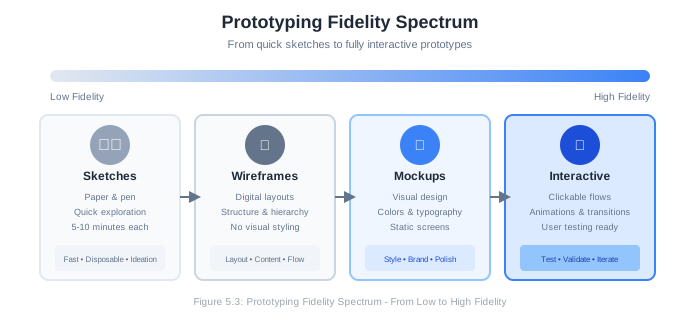
Low Fidelity ◄─────────────────────────────────────────────► High Fidelity

┌──────────────┬──────────────┬──────────────┬──────────────┐
│   Sketches   │  Wireframes  │   Mockups    │ Prototypes   │
├──────────────┼──────────────┼──────────────┼──────────────┤
│ Paper/       │ Digital,     │ Visual       │ Interactive, │
│ whiteboard   │ grayscale,   │ design with  │ clickable,   │
│ rough ideas  │ layout focus │ colors/fonts │ simulates    │
│              │              │              │ behavior     │
├──────────────┼──────────────┼──────────────┼──────────────┤
│ Minutes      │ Hours        │ Hours-Days   │ Days-Weeks   │
├──────────────┼──────────────┼──────────────┼──────────────┤
│ Explore      │ Define       │ Refine       │ Validate     │
│ concepts     │ structure    │ aesthetics   │ interactions │
└──────────────┴──────────────┴──────────────┴──────────────┘
Low-fidelity prototypes are quick and cheap. They’re good for exploring many ideas and getting early feedback without emotional attachment.
High-fidelity prototypes look and feel like real products. They’re better for testing detailed interactions and getting reactions to visual design.
5.5.2 Sketching
Sketching is the fastest way to explore ideas. Don’t worry about artistic ability—rough sketches communicate ideas effectively.
Why Sketch?
- Extremely fast (seconds to minutes)
- No software needed
- Easy to iterate—just flip to a new page
- Encourages divergent thinking
- No emotional attachment to rough sketches
Sketching Tips:
- Use pen (not pencil) to avoid erasing—just draw again
- Draw multiple variations quickly
- Annotate with notes explaining behavior
- Use standard UI conventions (boxes for buttons, lines for text)
- Include arrows and notes for interactions
Basic UI Sketching Vocabulary:
┌─────────────────────────────────────────────────────────────┐
│                                                             │
│  ┌─────────────┐    Button                                  │
│  │   Label     │                                            │
│  └─────────────┘                                            │
│                                                             │
│  ┌─────────────────────────────────────┐                    │
│  │                                     │    Text input      │
│  └─────────────────────────────────────┘                    │
│                                                             │
│  ────────────────────────────────────────   Line of text    │
│  ────────────────────────────────────                       │
│  ──────────────────────────                                 │
│                                                             │
│  ┌─────────────────────────────────────┐                    │
│  │  ☰  Header / Navigation             │    Header bar      │
│  └─────────────────────────────────────┘                    │
│                                                             │
│  ┌─────┐                                                    │
│  │  ×  │    Image placeholder                               │
│  └─────┘                                                    │
│                                                             │
│  [○] Option A                           Radio button        │
│  [●] Option B (selected)                                    │
│                                                             │
│  [✓] Checkbox (checked)                 Checkbox            │
│  [ ] Checkbox (unchecked)                                   │
│                                                             │
│  ┌─────────────────────────────▼┐       Dropdown            │
│  │  Select an option...         │                           │
│  └──────────────────────────────┘                           │
│                                                             │
└─────────────────────────────────────────────────────────────┘
5.5.3 Wireframes
Wireframes are low-fidelity representations of a user interface that show structure, layout, and content hierarchy without visual design details.
Wireframe Characteristics:
- Grayscale (no colors)
- Placeholder content (Lorem ipsum, gray boxes for images)
- Focus on layout and information hierarchy
- Basic UI elements without styling
- Annotations explaining functionality
Purpose of Wireframes:
- Define content and structure
- Establish layout and spacing
- Plan navigation and user flows
- Communicate functionality to stakeholders
- Serve as blueprint for visual design
Wireframe Example - Dashboard:
┌─────────────────────────────────────────────────────────────────────────┐
│  ┌──────┐                                            [?] [🔔] [👤 User ▼]│
│  │ Logo │   Dashboard    Projects    Team    Settings                   │
├─────────────────────────────────────────────────────────────────────────┤
│                                                                         │
│  Welcome back, Sarah!                                    [+ New Project]│
│                                                                         │
│  ┌────────────────────┐ ┌────────────────────┐ ┌────────────────────┐  │
│  │   Active Projects  │ │    Tasks Due       │ │   Team Activity    │  │
│  │                    │ │                    │ │                    │  │
│  │       12           │ │        5           │ │        23          │  │
│  │                    │ │      Today         │ │    Updates         │  │
│  └────────────────────┘ └────────────────────┘ └────────────────────┘  │
│                                                                         │
│  Recent Projects                                          [View All →] │
│  ┌─────────────────────────────────────────────────────────────────┐   │
│  │  [×] Website Redesign          Progress: ████████░░░ 75%       │   │
│  │      Due: Oct 15    Team: 4    Status: On Track                │   │
│  ├─────────────────────────────────────────────────────────────────┤   │
│  │  [×] Mobile App v2             Progress: ████░░░░░░░ 40%       │   │
│  │      Due: Nov 30    Team: 6    Status: At Risk                 │   │
│  ├─────────────────────────────────────────────────────────────────┤   │
│  │  [×] Q4 Marketing Campaign     Progress: ██░░░░░░░░░ 20%       │   │
│  │      Due: Dec 1     Team: 3    Status: On Track                │   │
│  └─────────────────────────────────────────────────────────────────┘   │
│                                                                         │
│  My Tasks                                                 [View All →] │
│  ┌─────────────────────────────────────────────────────────────────┐   │
│  │  [ ] Review design mockups              Due: Today              │   │
│  │  [ ] Approve budget proposal            Due: Today              │   │
│  │  [ ] Team standup meeting               Due: Tomorrow           │   │
│  │  [ ] Review Q3 report                   Due: Oct 10             │   │
│  └─────────────────────────────────────────────────────────────────┘   │
│                                                                         │
└─────────────────────────────────────────────────────────────────────────┘
Wireframe Example - Mobile Login:
┌─────────────────────────┐
│ ◀ Back                  │
├─────────────────────────┤
│                         │
│                         │
│      ┌─────────┐        │
│      │  Logo   │        │
│      └─────────┘        │
│                         │
│    Welcome Back         │
│  Sign in to continue    │
│                         │
│  Email                  │
│  ┌─────────────────────┐│
│  │ sarah@example.com   ││
│  └─────────────────────┘│
│                         │
│  Password               │
│  ┌─────────────────────┐│
│  │ ••••••••••     [👁] ││
│  └─────────────────────┘│
│                         │
│  [ ] Remember me        │
│                         │
│  ┌─────────────────────┐│
│  │      Sign In        ││
│  └─────────────────────┘│
│                         │
│    Forgot password?     │
│                         │
│  ─────────────────────  │
│                         │
│  Don't have an account? │
│       Sign Up           │
│                         │
└─────────────────────────┘
5.5.4 Interactive Prototypes
Interactive prototypes add behavior to wireframes or mockups. Users can click, tap, and navigate as if using a real application.
Levels of Interactivity:
Click-through prototypes: Pages linked together. Clicking a button navigates to another page. Good for testing navigation and flow.
Interactive prototypes: Include form interactions, animations, conditional logic. Good for testing detailed interactions.
Functional prototypes: Working code (often simplified). Real data, real logic, limited scope. Good for technical validation.
What to Test with Prototypes:
- Navigation: Can users find their way around?
- Comprehension: Do users understand what they’re seeing?
- Task completion: Can users accomplish specific tasks?
- Expectations: Does the design match user mental models?
- Desirability: Do users like the design?
5.5.5 Prototyping Tools
Modern tools make creating prototypes faster than ever:
Low-Fidelity / Wireframing:
- Balsamiq: Intentionally sketch-like wireframes
- Whimsical: Flowcharts and wireframes
- Excalidraw: Hand-drawn style diagrams (free)
- Paper and pen: Still valid!
High-Fidelity / Design:
- Figma: Industry standard, collaborative, free tier (highly recommended)
- Sketch: Mac-only, popular with designers
- Adobe XD: Part of Adobe ecosystem
- Framer: Design with code-like interactions
Code-Based Prototyping:
- HTML/CSS: For web interfaces
- React with Storybook: Component-based prototyping
- SwiftUI Previews: iOS prototyping
Choosing a Tool:
| Need | Recommended Tool |
|---|---|
| Quick exploration | Paper, Whimsical |
| Shareable wireframes | Figma, Balsamiq |
| High-fidelity mockups | Figma, Sketch |
| Complex interactions | Figma, Framer |
| Team collaboration | Figma |
| Developer handoff | Figma |
For this course, Figma is recommended because it’s free, web-based, collaborative, and industry-standard.
5.6 Visual Design Fundamentals
While this isn’t a graphic design course, understanding visual design principles helps you create more effective interfaces—and communicate better with designers.
5.6.1 Visual Hierarchy
Visual hierarchy guides users’ attention to the most important elements first. It’s achieved through size, color, contrast, position, and spacing.
Hierarchy Techniques:
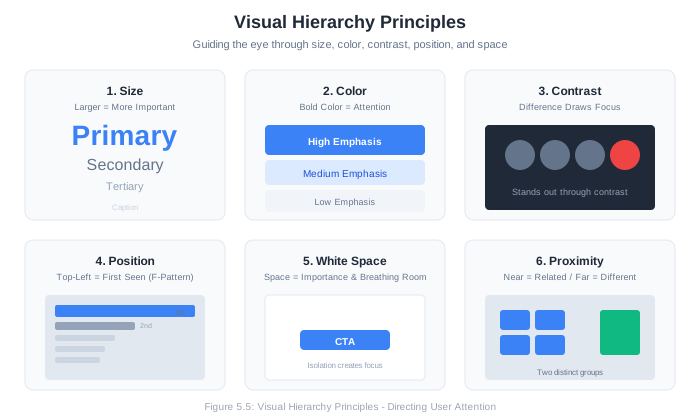
Size: Larger elements attract attention first
┌─────────────────────────────────────┐
│                                     │
│   BIG HEADLINE                      │  ← Eye goes here first
│   Smaller subheading                │  ← Then here
│   Body text that provides more      │  ← Then here
│   detail about the content...       │
│                                     │
└─────────────────────────────────────┘
Color and Contrast: High-contrast elements stand out
┌─────────────────────────────────────┐
│                                     │
│   ┌─────────────────────────────┐   │
│   │      Primary Action         │   │  ← High contrast button
│   └─────────────────────────────┘   │
│                                     │
│   ┌─────────────────────────────┐   │
│   │     Secondary Action        │   │  ← Lower contrast
│   └─────────────────────────────┘   │
│                                     │
│          Tertiary link              │  ← Lowest emphasis
│                                     │
└─────────────────────────────────────┘Position: Top-left (in LTR languages) gets attention first; center draws focus
White Space: Isolated elements with surrounding space appear more important
5.6.2 Typography
Typography significantly impacts readability and tone.
Font Categories:
- Serif (Times, Georgia): Traditional, formal, good for body text in print
- Sans-serif (Arial, Helvetica, Inter): Modern, clean, good for screens
- Monospace (Courier, Fira Code): Technical, code, data
- Display (decorative fonts): Headlines only, use sparingly
Typography Best Practices:
- Limit font families: 1-2 per project
- Establish hierarchy: Different sizes for headings, subheadings, body
- Line length: 50-75 characters per line for readability
- Line height: 1.4-1.6 for body text
- Contrast: Ensure sufficient contrast against background
Type Scale Example:
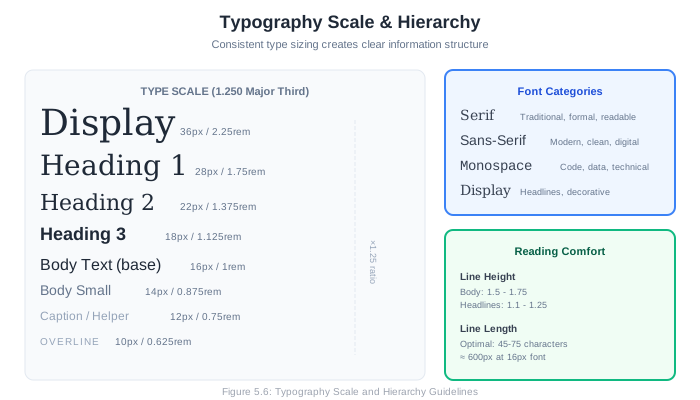
H1: 32px / Bold      "Page Title"
H2: 24px / Semibold  "Section Heading"
H3: 20px / Semibold  "Subsection"
Body: 16px / Regular "Paragraph text that users will read..."
Small: 14px / Regular "Helper text, captions"
Tiny: 12px / Regular "Legal text, timestamps"
5.6.3 Color
Color creates mood, guides attention, and communicates meaning.
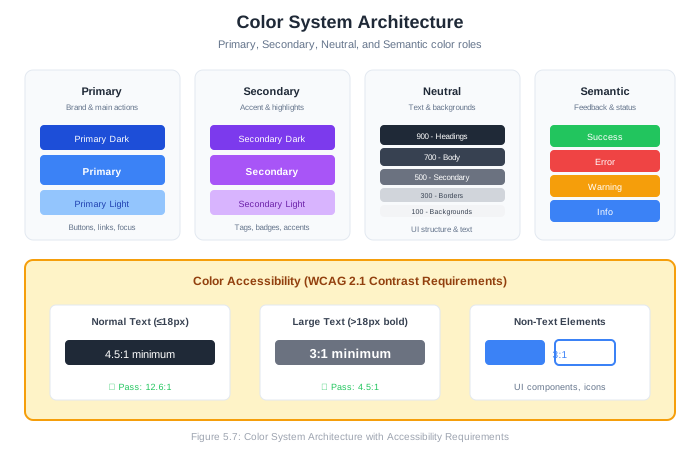
Color Purposes in UI:
- Primary color: Brand identity, primary actions
- Secondary color: Supporting elements
- Neutral colors: Text, backgrounds, borders
- Semantic colors: Success (green), warning (yellow), error (red), info (blue)
Color Accessibility:
- Don’t rely on color alone to convey meaning
- Ensure sufficient contrast ratios (WCAG guidelines)
- Test with color blindness simulators
Contrast Ratios (WCAG 2.1):
- Normal text: 4.5:1 minimum
- Large text (18px+ or 14px+ bold): 3:1 minimum
- UI components: 3:1 minimum
Simple Color Palette:
┌─────────────────────────────────────────────────────────────┐
│  PRIMARY                                                    │
│  ┌──────┐ ┌──────┐ ┌──────┐ ┌──────┐ ┌──────┐              │
│  │  50  │ │ 100  │ │ 500  │ │ 700  │ │ 900  │              │
│  │(light)│ │      │ │(main)│ │      │ │(dark)│              │
│  └──────┘ └──────┘ └──────┘ └──────┘ └──────┘              │
│                                                             │
│  NEUTRAL                                                    │
│  ┌──────┐ ┌──────┐ ┌──────┐ ┌──────┐ ┌──────┐ ┌──────┐     │
│  │White │ │Gray  │ │Gray  │ │Gray  │ │Gray  │ │Black │     │
│  │      │ │ 100  │ │ 300  │ │ 500  │ │ 700  │ │      │     │
│  └──────┘ └──────┘ └──────┘ └──────┘ └──────┘ └──────┘     │
│                                                             │
│  SEMANTIC                                                   │
│  ┌──────┐ ┌──────┐ ┌──────┐ ┌──────┐                       │
│  │Success│ │Warning│ │Error │ │ Info │                       │
│  │(green)│ │(yellow)│ │(red) │ │(blue)│                       │
│  └──────┘ └──────┘ └──────┘ └──────┘                       │
│                                                             │
└─────────────────────────────────────────────────────────────┘
5.6.4 Layout and Spacing
Consistent spacing creates visual rhythm and makes interfaces feel polished.
Spacing Systems:
Use a consistent scale (e.g., multiples of 4px or 8px):
- 4px, 8px, 12px, 16px, 24px, 32px, 48px, 64px
Grid Systems:
Grids provide structure for layout:
- Column grids: Common for web (12-column is standard)
- Modular grids: Rows and columns for complex layouts
- Baseline grids: Align text across columns
Layout Principles:
Alignment: Elements should align with each other
Good:                          Bad:
┌──────────────────────┐      ┌──────────────────────┐
│ Label                │      │ Label                │
│ ┌──────────────────┐ │      │   ┌────────────────┐ │
│ │ Input            │ │      │   │ Input          │ │
│ └──────────────────┘ │      │   └────────────────┘ │
│                      │      │                      │
│ Label                │      │  Label               │
│ ┌──────────────────┐ │      │ ┌──────────────────┐ │
│ │ Input            │ │      │ │ Input            │ │
│ └──────────────────┘ │      │ └──────────────────┘ │
└──────────────────────┘ └──────────────────────┘Proximity: Related elements should be closer together
┌────────────────────────────────────┐
│  Billing Address                   │
│  ┌──────────────────────────────┐  │  ← These belong together
│  │ Street                       │  │
│  └──────────────────────────────┘  │
│  ┌─────────┐ ┌───────┐ ┌───────┐  │
│  │ City    │ │ State │ │ Zip   │  │
│  └─────────┘ └───────┘ └───────┘  │
│                                    │  ← Gap separates sections
│  Shipping Address                  │
│  ┌──────────────────────────────┐  │  ← New group
│  │ Street                       │  │
│  └──────────────────────────────┘  │
└────────────────────────────────────┘
5.7 Responsive Design
Responsive design creates interfaces that adapt to different screen sizes and devices. Rather than building separate versions for desktop, tablet, and mobile, responsive design uses flexible layouts that reflow and resize.
5.7.1 Why Responsive Design Matters
Users access the web from many devices:
- Desktop computers (various screen sizes)
- Laptops
- Tablets (portrait and landscape)
- Smartphones (various sizes)
- Smart TVs
- Wearables
Building separate versions for each is impractical. Responsive design handles this variety with a single codebase.
5.7.2 Responsive Design Principles
1. Fluid Layouts
Use percentages and flexible units instead of fixed pixels:
/* Fixed - doesn't adapt */
.container {
    width: 960px;
}

/* Fluid - adapts to screen */
.container {
    width: 90%;
    max-width: 1200px;
}
2. Flexible Images
Images should scale within their containers:
img {
    max-width: 100%;
    height: auto;
}
3. Media Queries
Apply different styles based on screen characteristics:
/* Base styles (mobile-first) */
.sidebar {
    width: 100%;
}

/* Tablet and up */
@media (min-width: 768px) {
    .sidebar {
        width: 30%;
        float: left;
    }
}

/* Desktop and up */
@media (min-width: 1024px) {
    .sidebar {
        width: 25%;
    }
}
5.7.3 Breakpoints
Breakpoints are the screen widths where layout changes occur. Common breakpoints:
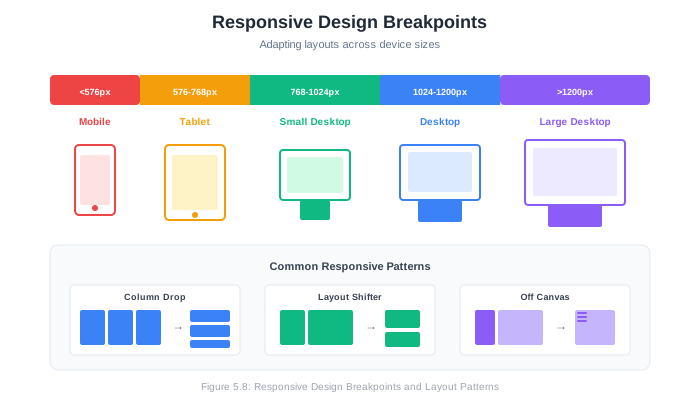
| Breakpoint | Target Devices |
|---|---|
| < 576px | Small phones |
| 576px - 768px | Large phones, small tablets |
| 768px - 1024px | Tablets |
| 1024px - 1200px | Small desktops, laptops |
| > 1200px | Large desktops |
Mobile-First vs. Desktop-First:
Mobile-first: Start with mobile styles, add complexity for larger screens
/* Mobile styles (default) */
.nav { display: none; }

/* Larger screens */
@media (min-width: 768px) {
    .nav { display: flex; }
}Desktop-first: Start with desktop styles, simplify for smaller screens
/* Desktop styles (default) */
.nav { display: flex; }

/* Smaller screens */
@media (max-width: 767px) {
    .nav { display: none; }
}
Mobile-first is generally recommended because:
- Forces prioritization of essential content
- Progressive enhancement (add features vs. remove them)
- Mobile usage continues to grow
5.7.4 Responsive Patterns
Column Drop:
Multi-column layout stacks into single column on small screens:
Desktop:                    Mobile:
┌────────┬────────┬────────┐ ┌────────────────┐
│   A    │   B    │   C    │ │       A        │
│        │        │        │ ├────────────────┤
│        │        │        │ │       B        │
└────────┴────────┴────────┘ ├────────────────┤
                             │       C        │
                             └────────────────┘
Layout Shifter:
Layout reorganizes more dramatically across breakpoints:
Desktop:                    Mobile:
┌──────────────────────────┐ ┌────────────────┐
│          Header          │ │     Header     │
├────────┬─────────────────┤ ├────────────────┤
│        │                 │ │                │
│  Nav   │     Content     │ │    Content     │
│        │                 │ │                │
│        │                 │ ├────────────────┤
└────────┴─────────────────┘ │      Nav       │
                             └────────────────┘
Off-Canvas:
Navigation hidden off-screen on mobile, slides in when activated:
Desktop:                    Mobile (menu closed):    Mobile (menu open):
┌────────────────────────┐  ┌────────────────┐      ┌──────┬─────────┐
│ Logo  Nav Nav Nav  User│  │ ☰ Logo    User │      │ Nav  │ Content │
├────────────────────────┤  ├────────────────┤      │      │ (dimmed)│
│                        │  │                │      │ Nav  │         │
│        Content         │  │    Content     │      │      │         │
│                        │  │                │      │ Nav  │         │
└────────────────────────┘  └────────────────┘      └──────┴─────────┘
5.7.5 Touch Considerations
Mobile interfaces require touch-friendly design:
Touch Target Sizes:
- Minimum 44x44 points (Apple) or 48x48dp (Google)
- Adequate spacing between targets
- Important actions should have larger targets
Touch Gestures:
- Tap: Primary interaction
- Swipe: Navigate, delete, reveal actions
- Pinch: Zoom
- Long press: Context menus, selection
Mobile-Specific Patterns:
- Bottom navigation (thumb-friendly)
- Pull to refresh
- Swipe actions on list items
- Floating action buttons
5.8 Accessibility
Accessibility means designing products that can be used by people with disabilities. This includes users who are blind or have low vision, deaf or hard of hearing, have motor impairments, or have cognitive disabilities.
5.8.1 Why Accessibility Matters
It’s the right thing to do. Everyone deserves access to digital services.
It’s often legally required. Many jurisdictions mandate accessibility (ADA in the US, EN 301 549 in EU).
It improves usability for everyone. Accessibility features like clear language, keyboard navigation, and good contrast benefit all users.
It expands your audience. Over 1 billion people worldwide have disabilities.
5.8.2 WCAG Guidelines
The Web Content Accessibility Guidelines (WCAG) are the international standard for web accessibility. WCAG 2.1 organizes guidelines under four principles (POUR):
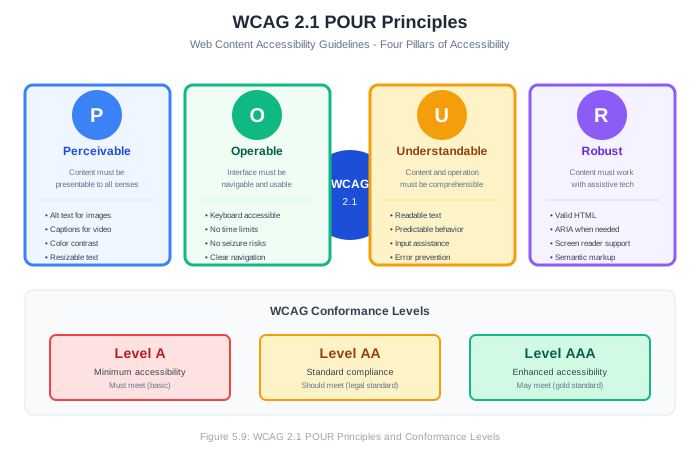
Perceivable: Information must be presentable in ways users can perceive
- Text alternatives for images
- Captions for video
- Sufficient color contrast
- Content adapts to different presentations
Operable: Interface components must be operable
- Keyboard accessible
- Enough time to read and use content
- No seizure-inducing content
- Navigable (clear structure, findable content)
Understandable: Information and operation must be understandable
- Readable text
- Predictable behavior
- Help users avoid and correct mistakes
Robust: Content must be robust enough for diverse user agents
- Compatible with assistive technologies
- Valid, well-structured code
Conformance Levels:
- Level A: Minimum accessibility (must meet)
- Level AA: Standard target for most sites (should meet)
- Level AAA: Highest accessibility (enhanced, not always possible)
5.8.3 Common Accessibility Requirements
1. Alternative Text for Images
Screen readers can’t see images; they read alt text instead.
<!-- Informative image -->
<img src="chart.png" alt="Sales increased 25% from Q1 to Q2">

<!-- Decorative image (empty alt) -->
<img src="decorative-line.png" alt="">

<!-- Complex image (link to description) -->
<img src="complex-diagram.png" alt="System architecture diagram"
     aria-describedby="diagram-description">
<div id="diagram-description">
    Detailed description of the diagram...
</div>
2. Keyboard Navigation
Everything should be operable with keyboard alone:
- Tab: Move between interactive elements
- Enter/Space: Activate buttons/links
- Arrow keys: Navigate within components
- Escape: Close dialogs/menus
<!-- Good: Native button is keyboard accessible -->
<button onclick="submit()">Submit</button>

<!-- Bad: Div requires extra work for accessibility -->
<div onclick="submit()">Submit</div>

<!-- If you must use div, add keyboard support -->
<div role="button" tabindex="0"
     onclick="submit()"
     onkeydown="if(event.key==='Enter') submit()">
    Submit
</div>
3. Focus Indicators
Users must see which element has keyboard focus:
/* Don't remove focus outlines without replacement */
/* Bad: */
:focus { outline: none; }

/* Good: Custom focus style */
:focus {
    outline: 2px solid #0066cc;
    outline-offset: 2px;
}

/* Or use focus-visible for mouse/keyboard distinction */
:focus-visible {
    outline: 2px solid #0066cc;
}
4. Color Contrast
Text must have sufficient contrast against background:
Good Contrast:                Poor Contrast:
┌─────────────────────────┐   ┌─────────────────────────┐
│                         │   │                         │
│   Dark text on light    │   │   Light gray on white   │
│   background (7:1)      │   │   background (1.5:1)    │
│                         │   │                         │
└─────────────────────────┘   └─────────────────────────┘
Tools to check contrast:
- WebAIM Contrast Checker
- Figma accessibility plugins
- Browser developer tools
5. Form Labels
Every form input needs an associated label:
<!-- Good: Label explicitly associated -->
<label for="email">Email address</label>
<input type="email" id="email" name="email">

<!-- Good: Label wraps input -->
<label>
    Email address
    <input type="email" name="email">
</label>

<!-- Bad: No label association -->
<span>Email address</span>
<input type="email" name="email">
6. Semantic HTML
Use HTML elements for their intended purpose:
<!-- Good: Semantic structure -->
<header>
    <nav>
        <ul>
            <li><a href="/">Home</a></li>
            <li><a href="/about">About</a></li>
        </ul>
    </nav>
</header>
<main>
    <article>
        <h1>Article Title</h1>
        <p>Content...</p>
    </article>
</main>
<footer>
    <p>Copyright 2024</p>
</footer>

<!-- Bad: Divs for everything -->
<div class="header">
    <div class="nav">
        <div class="nav-item">Home</div>
        <div class="nav-item">About</div>
    </div>
</div>
<div class="content">
    <div class="title">Article Title</div>
    <div>Content...</div>
</div>
7. ARIA When Needed
ARIA (Accessible Rich Internet Applications) adds semantic information when HTML alone isn’t sufficient:
<!-- Tab interface -->
<div role="tablist">
    <button role="tab" aria-selected="true" aria-controls="panel1">
        Tab 1
    </button>
    <button role="tab" aria-selected="false" aria-controls="panel2">
        Tab 2
    </button>
</div>
<div role="tabpanel" id="panel1">Content 1</div>
<div role="tabpanel" id="panel2" hidden>Content 2</div>

<!-- Live region for dynamic updates -->
<div aria-live="polite" aria-atomic="true">
    <!-- Screen reader announces when this content changes -->
    Your cart has been updated
</div>
ARIA Rules:
- Don’t use ARIA if HTML can do it
- Don’t change native semantics (unless necessary)
- All interactive ARIA controls must be keyboard accessible
- Don’t use
role="presentation"oraria-hidden="true"on focusable elements - All interactive elements must have an accessible name
5.8.4 Accessibility Testing
Automated Testing:
- axe DevTools (browser extension)
- WAVE (web accessibility evaluator)
- Lighthouse (built into Chrome)
- ESLint accessibility plugins
Manual Testing:
- Navigate with keyboard only
- Use a screen reader (VoiceOver, NVDA, JAWS)
- Zoom to 200%
- Test with high contrast mode
- Verify focus order makes sense
Accessibility Checklist:
5.9 Design Systems and Style Guides
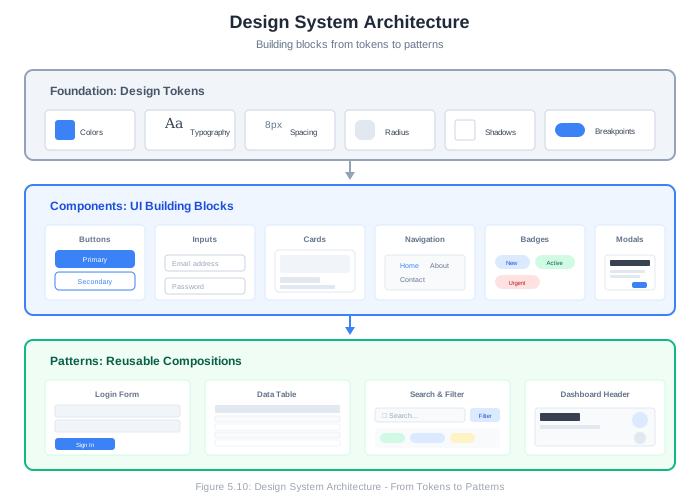
A design system is a collection of reusable components, guided by clear standards, that can be assembled to build any number of applications. A style guide documents these standards.
5.9.1 Why Design Systems Matter
Consistency: Users learn patterns once and apply them everywhere.
Efficiency: Don’t redesign buttons for every project. Reuse proven solutions.
Quality: Components are refined over time, incorporating accessibility and usability improvements.
Scalability: Large teams can work independently while maintaining consistency.
Communication: Shared vocabulary between designers and developers.
5.9.2 Components of a Design System
Design Tokens:
The smallest elements—colors, typography, spacing, shadows:
COLORS
──────────────────────────────────────
primary-50:    #E3F2FD
primary-100:   #BBDEFB
primary-500:   #2196F3  (main)
primary-700:   #1976D2
primary-900:   #0D47A1

TYPOGRAPHY
──────────────────────────────────────
font-family-primary:    "Inter", sans-serif
font-family-mono:       "Fira Code", monospace

font-size-xs:     12px
font-size-sm:     14px
font-size-base:   16px
font-size-lg:     18px
font-size-xl:     20px
font-size-2xl:    24px
font-size-3xl:    32px

SPACING
──────────────────────────────────────
space-1:    4px
space-2:    8px
space-3:    12px
space-4:    16px
space-5:    20px
space-6:    24px
space-8:    32px
space-10:   40px
space-12:   48px
space-16:   64px

SHADOWS
──────────────────────────────────────
shadow-sm:    0 1px 2px rgba(0,0,0,0.05)
shadow-md:    0 4px 6px rgba(0,0,0,0.1)
shadow-lg:    0 10px 15px rgba(0,0,0,0.1)

BORDER RADIUS
──────────────────────────────────────
radius-sm:    4px
radius-md:    8px
radius-lg:    16px
radius-full:  9999px
UI Components:
Reusable building blocks:
BUTTONS
──────────────────────────────────────

Primary Button
┌─────────────────────┐
│    Primary Action   │  Background: primary-500
└─────────────────────┘  Text: white
                         Padding: space-3 space-6
                         Border-radius: radius-md

Secondary Button
┌─────────────────────┐
│   Secondary Action  │  Background: transparent
└─────────────────────┘  Border: 1px solid primary-500
                         Text: primary-500

Destructive Button
┌─────────────────────┐
│       Delete        │  Background: error-500
└─────────────────────┘  Text: white

Button States:
- Default
- Hover (darken background 10%)
- Active (darken background 20%)
- Focused (add focus ring)
- Disabled (50% opacity, no pointer events)

FORM INPUTS
──────────────────────────────────────

Text Input
┌─────────────────────────────────────┐
│ Placeholder text                    │
└─────────────────────────────────────┘
Border: 1px solid gray-300
Border-radius: radius-md
Padding: space-3 space-4

States:
- Default: gray-300 border
- Focused: primary-500 border + shadow
- Error: error-500 border
- Disabled: gray-100 background

CARDS
──────────────────────────────────────

┌─────────────────────────────────────┐
│  Card Title                         │
│─────────────────────────────────────│
│                                     │
│  Card content goes here with       │
│  supporting text and information.   │
│                                     │
│  [Secondary]  [Primary Action]      │
└─────────────────────────────────────┘
Background: white
Border-radius: radius-lg
Shadow: shadow-md
Padding: space-6
Patterns:
Common UI patterns built from components:
NAVIGATION PATTERN
──────────────────────────────────────

Top Navigation (Desktop)
┌─────────────────────────────────────────────────────────────┐
│ [Logo]    Nav Item    Nav Item    Nav Item        [Avatar ▼]│
└─────────────────────────────────────────────────────────────┘

Mobile Navigation
┌─────────────────────────────────────┐
│ [☰]              [Logo]        [🔔] │
└─────────────────────────────────────┘

FORM PATTERN
──────────────────────────────────────

Standard Form Layout
┌─────────────────────────────────────┐
│  Form Title                         │
│  Subtitle or instructions           │
│                                     │
│  Label                              │
│  ┌─────────────────────────────────┐│
│  │ Input                           ││
│  └─────────────────────────────────┘│
│  Helper text                        │
│                                     │
│  Label                              │
│  ┌─────────────────────────────────┐│
│  │ Input                           ││
│  └─────────────────────────────────┘│
│                                     │
│           [Cancel]  [Submit]        │
└─────────────────────────────────────┘
5.9.3 Creating a Style Guide
A style guide documents your design system. For your project, include:
1. Introduction
- Purpose of the style guide
- How to use it
- Where to find resources (Figma files, code repositories)
2. Design Principles
- Core values guiding design decisions
- Example: “Clarity over decoration,” “Accessibility first”
3. Brand
- Logo usage
- Voice and tone
4. Visual Foundation
- Color palette (with accessibility notes)
- Typography scale
- Spacing system
- Iconography
- Imagery guidelines
5. Components
- Each component with:
- Visual examples (all states)
- Usage guidelines (when to use/not use)
- Specifications (sizes, colors, spacing)
- Code examples (if technical)
- Accessibility requirements
6. Patterns
- Common UI patterns
- Page layouts
- Navigation patterns
- Form patterns
5.9.4 Style Guide Example
Here’s a condensed style guide structure:
# TaskFlow Style Guide

## 1. Design Principles

1. **Clarity First**: Every element should have a clear purpose
2. **Respectful of Time**: Minimize steps, reduce friction
3. **Accessible to All**: WCAG AA compliance minimum
4. **Consistent Experience**: Same patterns throughout

## 2. Colors

### Primary Palette
| Name        | Hex     | Usage                    |
|-------------|---------|--------------------------|
| Primary     | #2563EB | Interactive elements     |
| Primary Dark| #1D4ED8 | Hover states             |
| Primary Light| #DBEAFE| Backgrounds, highlights  |

### Semantic Colors
| Name    | Hex     | Usage            |
|---------|---------|------------------|
| Success | #10B981 | Success states   |
| Warning | #F59E0B | Warning states   |
| Error   | #EF4444 | Error states     |
| Info    | #3B82F6 | Info states      |

### Neutrals
| Name      | Hex     | Usage            |
|-----------|---------|------------------|
| Gray 900  | #111827 | Primary text     |
| Gray 600  | #4B5563 | Secondary text   |
| Gray 400  | #9CA3AF | Disabled, hints  |
| Gray 200  | #E5E7EB | Borders          |
| Gray 50   | #F9FAFB | Backgrounds      |

## 3. Typography

**Font Family**: Inter (sans-serif)

| Style    | Size | Weight | Line Height | Usage        |
|----------|------|--------|-------------|--------------|
| H1       | 32px | 700    | 1.2         | Page titles  |
| H2       | 24px | 600    | 1.3         | Section heads|
| H3       | 20px | 600    | 1.4         | Subsections  |
| Body     | 16px | 400    | 1.5         | Body text    |
| Small    | 14px | 400    | 1.5         | Helper text  |
| Caption  | 12px | 400    | 1.4         | Labels       |

## 4. Spacing

Base unit: 4px

| Token   | Value | Usage                    |
|---------|-------|--------------------------|
| xs      | 4px   | Tight spacing            |
| sm      | 8px   | Related elements         |
| md      | 16px  | Default spacing          |
| lg      | 24px  | Section spacing          |
| xl      | 32px  | Large gaps               |
| 2xl     | 48px  | Page sections            |

## 5. Components

### Buttons

**Primary Button**
- Background: Primary (#2563EB)
- Text: White
- Padding: 12px 24px
- Border-radius: 6px
- States: Hover (Primary Dark), Disabled (50% opacity)

**Usage**: Use for primary actions. One per section maximum.

**Accessibility**:
- Minimum touch target 44x44px
- Focus ring: 2px offset, Primary color

[Continue for each component...]
5.10 Prototyping in Practice: Using Figma
Figma is the industry-standard tool for UI design and prototyping. This section provides a practical introduction.
5.10.1 Figma Basics
Key Concepts:
- Canvas: Infinite workspace where you design
- Frames: Containers for your designs (like artboards)
- Layers: Objects stack in layers (like Photoshop)
- Components: Reusable elements
- Variants: Different versions of a component
- Auto Layout: Flexible, responsive containers
- Prototyping: Link frames to create interactive flows
Essential Tools:
| Tool | Shortcut | Purpose |
|---|---|---|
| Move | V | Select and move objects |
| Frame | F | Create frames/containers |
| Rectangle | R | Draw rectangles |
| Ellipse | O | Draw circles/ellipses |
| Line | L | Draw lines |
| Text | T | Add text |
| Pen | P | Draw custom shapes |
| Hand | H (hold Space) | Pan around canvas |
| Zoom | Scroll or Z | Zoom in/out |
5.10.2 Creating a Simple Wireframe in Figma
Step 1: Set Up Frame
- Press F for Frame tool
- Select a device preset (e.g., “Desktop” 1440x900)
- Name your frame in the layers panel
Step 2: Add Structure
Draw rectangles (R) for major areas:
- Header
- Sidebar
- Main content
- Footer
Use gray fills (#E5E7EB for backgrounds, #9CA3AF for placeholders)
Step 3: Add Content Placeholders
- Text tool (T) for headings and labels
- Rectangles with X pattern for image placeholders
- Lines for text content
Step 4: Create Components
- Select a reusable element (e.g., a button)
- Right-click → “Create Component” (or Ctrl/Cmd + Alt + K)
- Use instances of the component throughout your design
Step 5: Add Prototyping Interactions
- Switch to Prototype tab (right panel)
- Select an element
- Drag the connection handle to the target frame
- Set interaction (e.g., “On Click → Navigate to”)
- Press Play button to preview
5.10.3 Figma Tips for Beginners
Organization:
- Name your layers meaningfully
- Group related elements (Ctrl/Cmd + G)
- Use pages for different sections of your project
- Create a “Components” page for your design system
Efficiency:
- Copy styles: Select object with desired style, then use eyedropper
- Duplicate: Alt + drag
- Align/distribute: Use toolbar or right-click
- Auto Layout: Makes responsive containers (Shift + A)
Collaboration:
- Share link for viewing/editing
- Leave comments on designs
- Use branches for major changes
- Export assets for development (PNG, SVG, CSS)
5.11 Chapter Summary
UI/UX design is essential to creating software that users actually want to use. Good design isn’t about making things pretty—it’s about understanding users and creating interfaces that help them accomplish their goals efficiently and pleasantly.
Key takeaways from this chapter:
UX design focuses on the overall experience—how users feel when using a product. UI design focuses on the visual and interactive elements they directly interact with.
Human-centered design starts with understanding users through research, empathy, and observation. Personas and journey maps help teams maintain focus on user needs.
Nielsen’s 10 Usability Heuristics provide a framework for evaluating and improving interfaces. They address visibility, consistency, error prevention, and more.
Prototyping ranges from paper sketches to interactive simulations. Different fidelities serve different purposes in the design process.
Visual design fundamentals—hierarchy, typography, color, and layout—create interfaces that communicate clearly and guide user attention.
Responsive design creates interfaces that adapt to different screen sizes using fluid layouts, flexible images, and media queries.
Accessibility ensures products work for users with disabilities. WCAG provides guidelines organized around perceivability, operability, understandability, and robustness.
Design systems and style guides document reusable components and standards, enabling consistency and efficiency across projects.
Figma is the industry-standard tool for UI design and prototyping, enabling designers and developers to collaborate on interface designs.
5.12 Key Terms
| Term | Definition |
|---|---|
| User Experience (UX) | The overall experience a user has when interacting with a product |
| User Interface (UI) | The visual and interactive elements users interact with |
| Human-Centered Design | Design approach that focuses on understanding and addressing user needs |
| Persona | Fictional character representing a user type |
| Journey Map | Visualization of user experience over time |
| Heuristic | Rule of thumb for evaluating design quality |
| Wireframe | Low-fidelity representation of interface layout |
| Prototype | Interactive model for testing design concepts |
| Responsive Design | Design that adapts to different screen sizes |
| Breakpoint | Screen width where layout changes occur |
| Accessibility | Design that can be used by people with disabilities |
| WCAG | Web Content Accessibility Guidelines |
| Design System | Collection of reusable components with documented standards |
| Style Guide | Documentation of design standards and patterns |
| Design Token | Smallest element of a design system (color, spacing, etc.) |
5.13 Review Questions
Explain the difference between UX and UI design. How do they relate to each other?
What is human-centered design? Describe its key principles and why they matter for software development.
Choose three of Nielsen’s 10 Usability Heuristics and explain each with an example of how a violation would affect users.
What is the difference between low-fidelity and high-fidelity prototypes? When would you use each?
Explain the mobile-first approach to responsive design. What are its advantages?
What is WCAG, and what are its four main principles? Give one specific guideline for each principle.
Why do keyboard navigation and focus indicators matter for accessibility?
What is a design system, and what are its benefits for software development teams?
Explain the concept of visual hierarchy. What techniques can you use to create it?
You’re designing a checkout flow for an e-commerce site. How would you apply error prevention principles to reduce user mistakes?
5.14 Hands-On Exercises
5.14.1 Exercise 5.1: Heuristic Evaluation
Choose a website or application you use regularly. Conduct a heuristic evaluation:
- Review the interface against Nielsen’s 10 heuristics
- Identify at least 10 usability issues
- Rate each issue’s severity (0-4)
- Provide specific recommendations for improvement
- Document your findings in a report
5.14.2 Exercise 5.2: User Persona Creation
For your semester project:
- Identify your primary user type(s)
- Create at least 2 detailed personas including:
- Demographics and background
- Goals and motivations
- Frustrations and pain points
- Technology comfort level
- A representative quote
- Create a user journey map for one key task
5.14.3 Exercise 5.3: Paper Prototyping
Before using digital tools:
- Sketch wireframes on paper for 5-7 key screens of your project
- Include annotations explaining functionality
- Test your paper prototype with a classmate:
- Give them a task to complete
- “Swap” paper screens as they navigate
- Note where they get confused
- Iterate based on feedback
5.14.4 Exercise 5.4: Digital Wireframes
Using Figma (or similar tool):
- Create wireframes for your project’s main screens
- Include:
- Navigation structure
- Content layout
- Key UI elements (buttons, forms, etc.)
- Placeholder content
- Link wireframes into an interactive prototype
- Test with at least 2 users and document findings
5.14.5 Exercise 5.5: Style Guide Creation
Create a style guide for your project including:
Color Palette
- Primary, secondary, and accent colors
- Semantic colors (success, error, warning, info)
- Neutral/gray scale
- Accessibility notes for each color combination
Typography
- Font families
- Size scale (H1-H6, body, small)
- Weight and line-height specifications
Spacing System
- Base unit and scale
Component Documentation (at least 5 components):
- Buttons (with all states)
- Input fields (with states)
- Cards
- Navigation
- One additional component of your choice
5.14.6 Exercise 5.6: Accessibility Audit
Conduct an accessibility review of your project prototype:
- Use an accessibility checker tool (axe, WAVE)
- Test keyboard navigation manually
- Check color contrast for all text
- Verify all images have alt text
- Test with a screen reader (even briefly)
- Document issues found and fixes needed
- Create an accessibility compliance checklist for your project
5.14.7 Exercise 5.7: Responsive Design
For one screen of your project:
- Design the mobile version (375px wide)
- Design the tablet version (768px wide)
- Design the desktop version (1440px wide)
- Document what changes at each breakpoint
- Explain your responsive design decisions
5.15 Further Reading
Books:
- Krug, S. (2014). Don’t Make Me Think, Revisited: A Common Sense Approach to Web Usability (3rd Edition). New Riders.
- Norman, D. (2013). The Design of Everyday Things (Revised Edition). Basic Books.
- Cooper, A., Reimann, R., Cronin, D., & Noessel, C. (2014). About Face: The Essentials of Interaction Design (4th Edition). Wiley.
- Lidwell, W., Holden, K., & Butler, J. (2010). Universal Principles of Design (Revised Edition). Rockport.
Online Resources:
- Nielsen Norman Group: https://www.nngroup.com/articles/
- Laws of UX: https://lawsofux.com/
- WebAIM Accessibility: https://webaim.org/
- Figma Learn: https://help.figma.com/
- A11y Project: https://www.a11yproject.com/
- Material Design Guidelines: https://material.io/design
Tools:
- Figma: https://www.figma.com/ (free tier available)
- WebAIM Contrast Checker: https://webaim.org/resources/contrastchecker/
- axe DevTools: Browser extension for accessibility testing
- Stark: Figma plugin for accessibility
5.16 References
Cooper, A., Reimann, R., Cronin, D., & Noessel, C. (2014). About Face: The Essentials of Interaction Design (4th Edition). Wiley.
IDEO. (2015). The Field Guide to Human-Centered Design. IDEO.org.
Krug, S. (2014). Don’t Make Me Think, Revisited: A Common Sense Approach to Web Usability (3rd Edition). New Riders.
Nielsen, J. (1994). Usability Engineering. Morgan Kaufmann.
Nielsen, J. (1994). 10 Usability Heuristics for User Interface Design. Nielsen Norman Group. Retrieved from https://www.nngroup.com/articles/ten-usability-heuristics/
Norman, D. (2013). The Design of Everyday Things (Revised Edition). Basic Books.
W3C. (2018). Web Content Accessibility Guidelines (WCAG) 2.1. Retrieved from https://www.w3.org/TR/WCAG21/
Wroblewski, L. (2011). Mobile First. A Book Apart.Sample content for 06-ui-ux.qmd